BlackVue Downloader

★  New in 5.5: VIOFO cameras and a new look →


★  Compatible with new BlackVue firmware (ELITE 10 v1.009, ELITE 8 v1.013, DR970X v1.014, ELITE 9 v1.010).

Supports:
DR650GW, DR650S, DR750S-1CH/2CH (incl. IR & Truck), DR750X-1CH/2CH/3CH (incl. Plus, IR & LTE), DR900S-1CH/2CH (incl. IR), DR900X-1CH/2CH (incl. Plus), DR970X, DR970X LTE, DR970X Plus, DR770X
ELITE series — ELITE 8, ELITE 9, ELITE 10, ELITE + GOLD & ELITE AIR
Compatible with new BlackVue firmware (ELITE 10 v1.009, ELITE 8 v1.013, DR970X v1.014, ELITE 9 v1.010). New in 5.5: VIOFO camerasWith Wi-Fi station mode: A329, A329S, A229 Pro, A229 Plus, A139 Pro, A119 Mini 2, and the new T330, T340 and A149 Pro Duo (VIOFO says yes, awaiting user feedback; see below)

Download all your dashcam footage, locally, via your own wifi network, without needing Cloud/Internet.

Every drive on a street map, with its speed – and GPS files saved for the long term

(See Below for Details)

★  New in 5.5

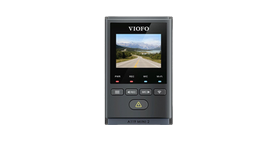
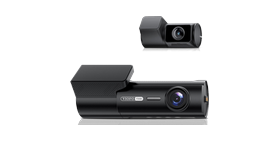
VIOFO cameras

BlackVue Downloader now downloads from VIOFO dash cameras.

Add a VIOFO camera by its IP address, just like a BlackVue – the app works out which kind it is.

Its clips download over your home Wi-Fi, with GPS, Track Data maps and a Locked Events list.

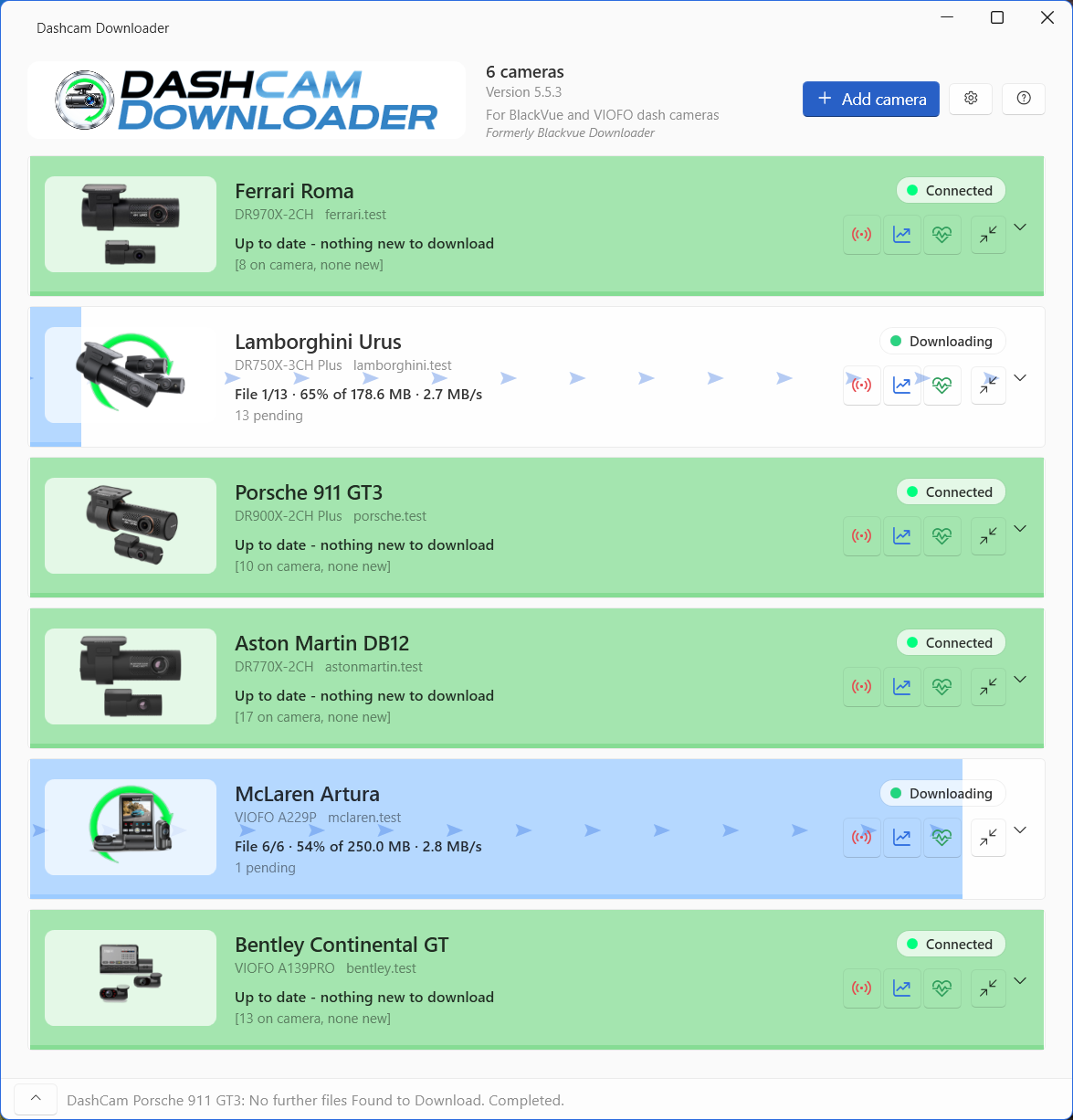
BlackVue and VIOFO cameras side by side, in the one app.

VIOFO cameras with Wi-Fi station mode
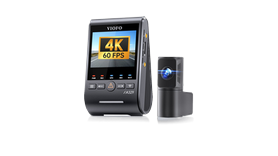
VIOFO A329A329
VIOFO A329SA329S
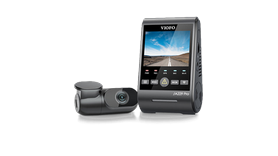
VIOFO A229 ProA229 Pro
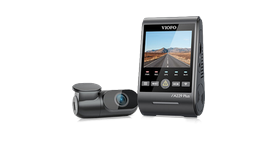
VIOFO A229 PlusA229 Plus
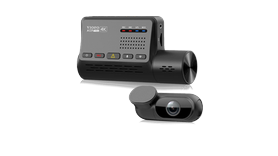
VIOFO A139 ProA139 Pro
VIOFO A119 Mini 2A119 Mini 2
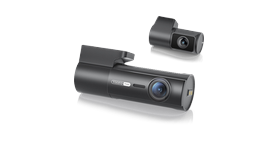
VIOFO T330T330New line-up – VIOFO says yes, awaiting user feedback (VIOFO's reply)
VIOFO T340T340New line-up – VIOFO says yes, awaiting user feedback (VIOFO's reply)
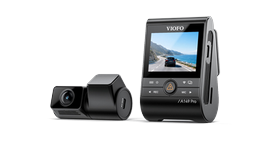
VIOFO A149 Pro DuoA149 Pro DuoNew line-up – VIOFO says yes, awaiting user feedback (VIOFO's reply)

Before you start: Wi-Fi station mode is yours to set up.

The camera has to join your home Wi-Fi – VIOFO calls this Wi-Fi station mode. You turn it on yourself, in the VIOFO app and on the camera; the app's set-up tips walk you through VIOFO's steps. VIOFO lists station mode for these models and some others – check VIOFO's site for your model. VIOFO cameras without station mode can only be downloaded with your PC joined to the camera's own hotspot.

Parking mode depends on the camera's firmware. With standard VIOFO firmware the camera switches its Wi-Fi off when parking mode starts, so downloads happen while the car is running – for example for a few minutes after you arrive home. Whether a camera can keep its Wi-Fi on while parked depends on its firmware: please confirm with VIOFO support that a suitable firmware is available for your model before relying on it.

VIOFO's new line-up – T330, T340 and A149 Pro Duo – supports Wi-Fi station mode too. VIOFO support told us that when the car is parked within range of your home network, the camera can join your home Wi-Fi, and that if you also want parking mode at the same time, VIOFO can prepare a special firmware that keeps Wi-Fi always on (VIOFO's answer, on the T330 page) – see VIOFO's reply.

User beware: VIOFO's firmware and support are outside our control. That is why the 7-day trial is fully functional – please make sure your camera downloads with it before you buy.
Everything new in 5.5 – VIOFO cameras and a new look →

★  Version 5.5

More than a downloader

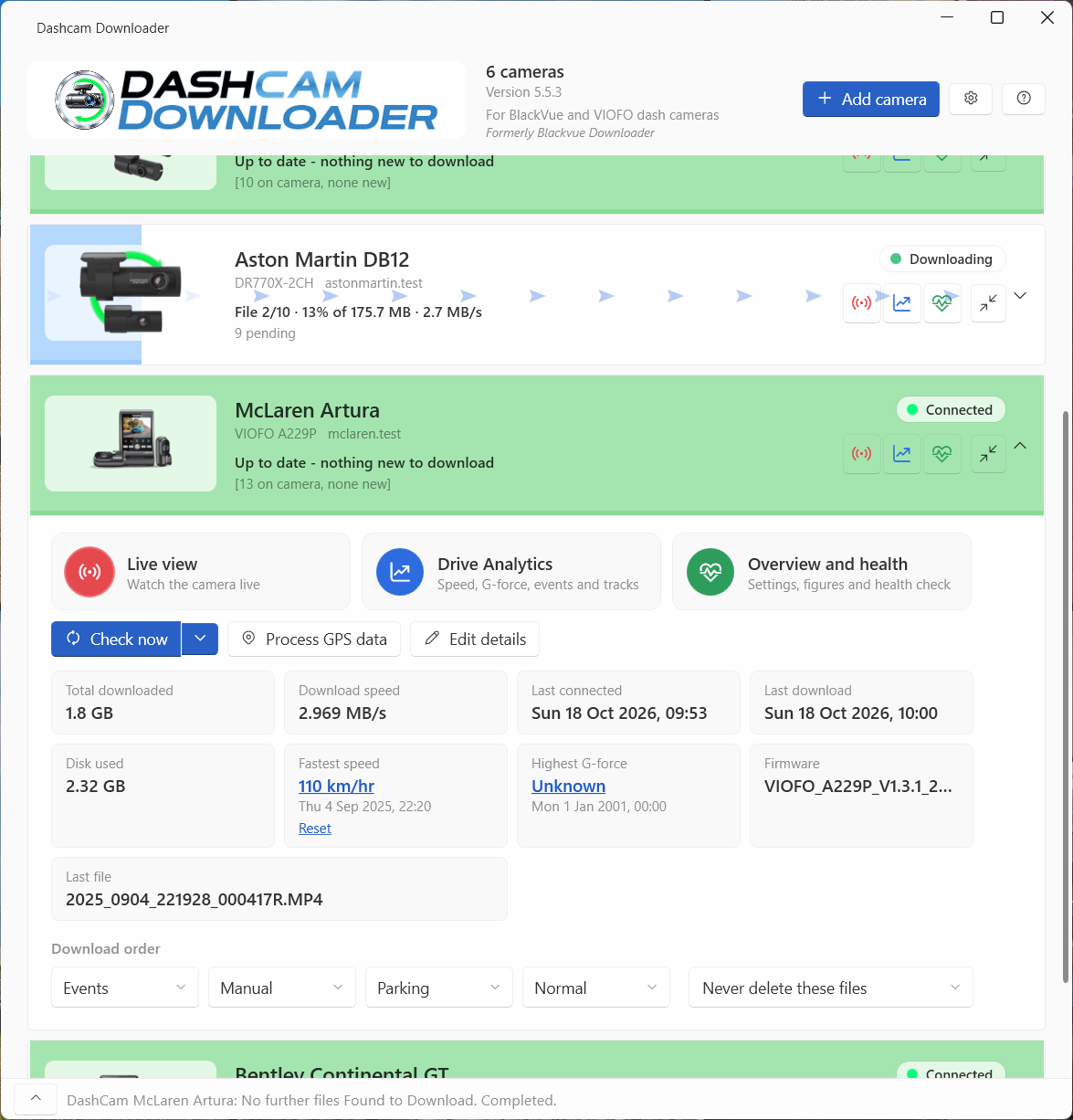
Download, analyse and play your footage from BlackVue and VIOFO cameras – and see exactly how each camera is set up.

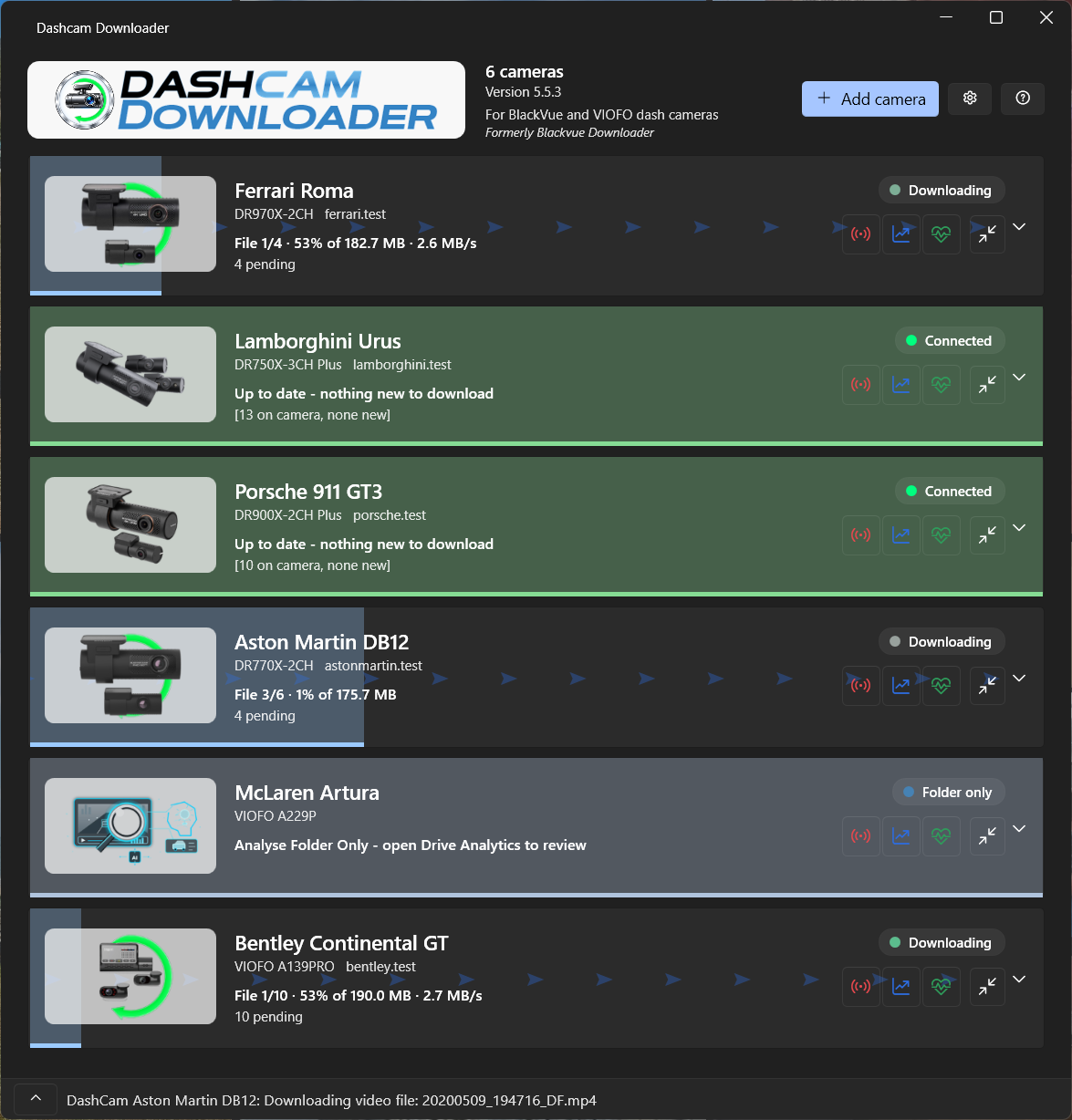
Camera cards - one opened
5.5

Camera cards, light or dark

Each camera on its own card, its picture on its progress bar. Live view, Drive Analytics and the Overview one click away; open a card for its figures and download order. Follows Windows light or dark mode – or tick Classic layout for the original look.

Drive Analytics for a VIOFO camera
5.5

VIOFO cameras

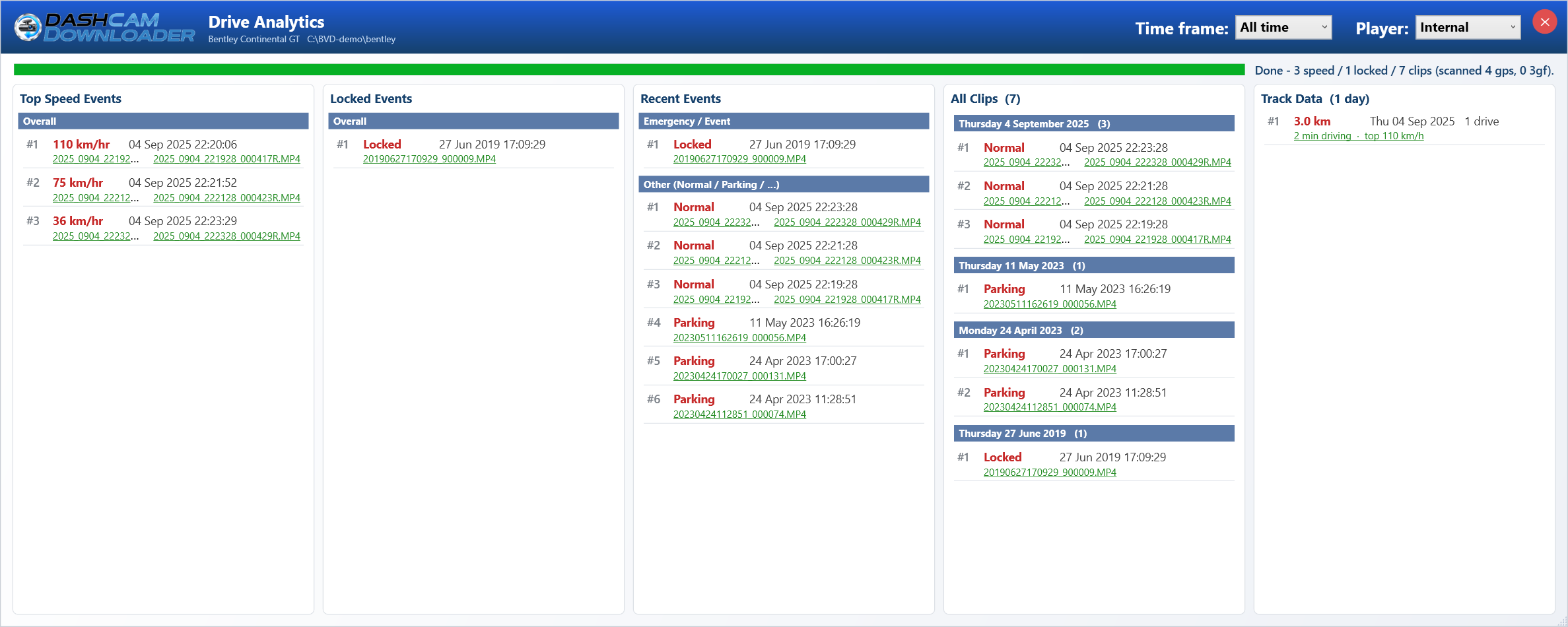
Downloads from VIOFO cameras over your home Wi-Fi, with GPS, Track Data and a Locked Events list – the clips the camera locked after an impact or a press of its lock button. Which cameras, and setting up station mode.

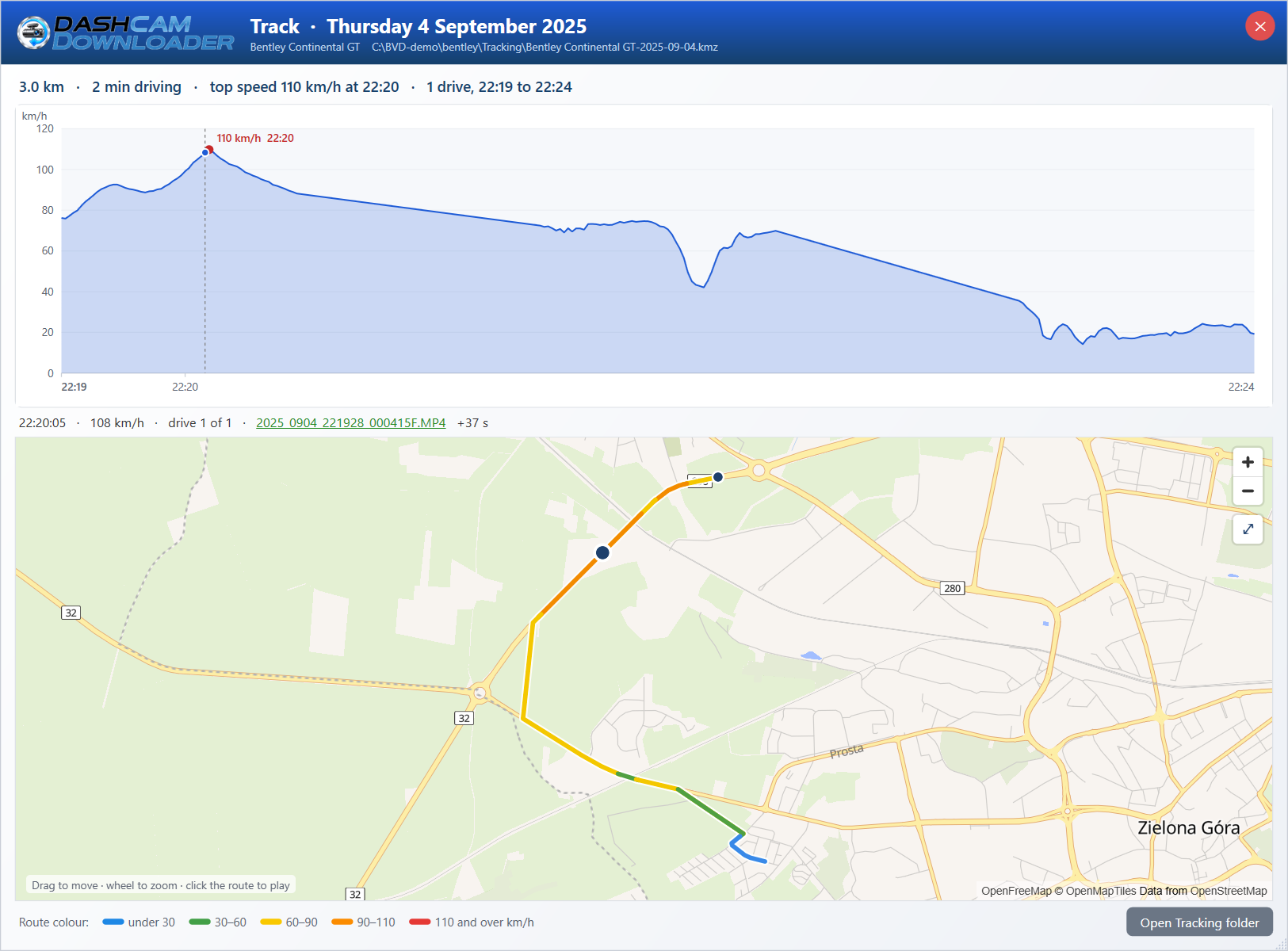
Track window - speed graph and street map
5.4

Track Data

Every drive on a street map, with the day's speed graph. Move along the graph and the map follows; click either to play the clip from that exact second.

Drive Analytics window
5.0 · All Clips in 5.3

Drive Analytics

Your top speeds and hardest G-forces (today, yesterday, overall) – or the locked clips, for a VIOFO camera – recent events by type, and every clip day by day. Click any event and the clip opens at that exact second.

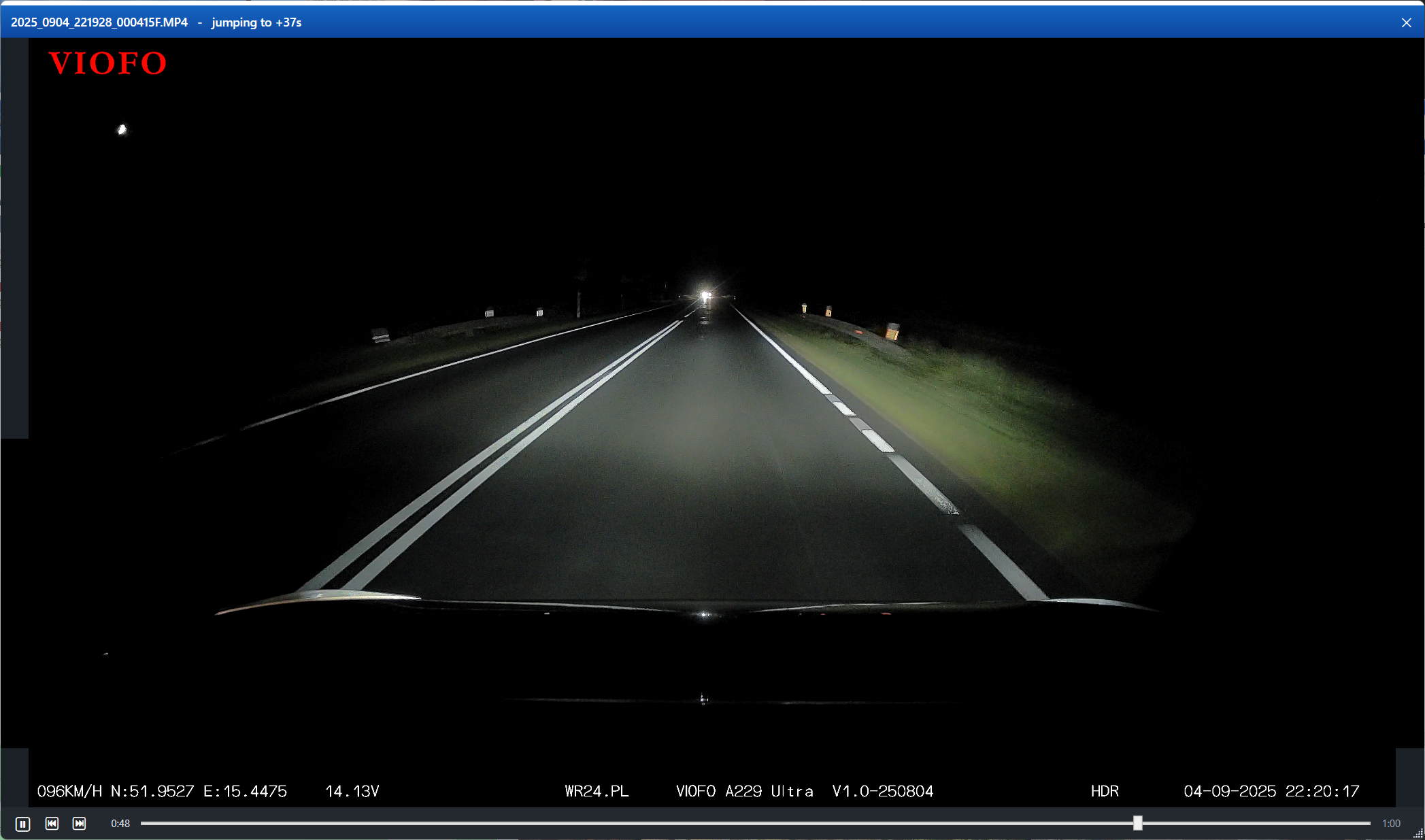
Built-in clip player
5.0

Built-in player

Jumps straight to the moment that matters, with a seek bar – or open clips in VLC, MPC-HC, mpv or your Windows default player.

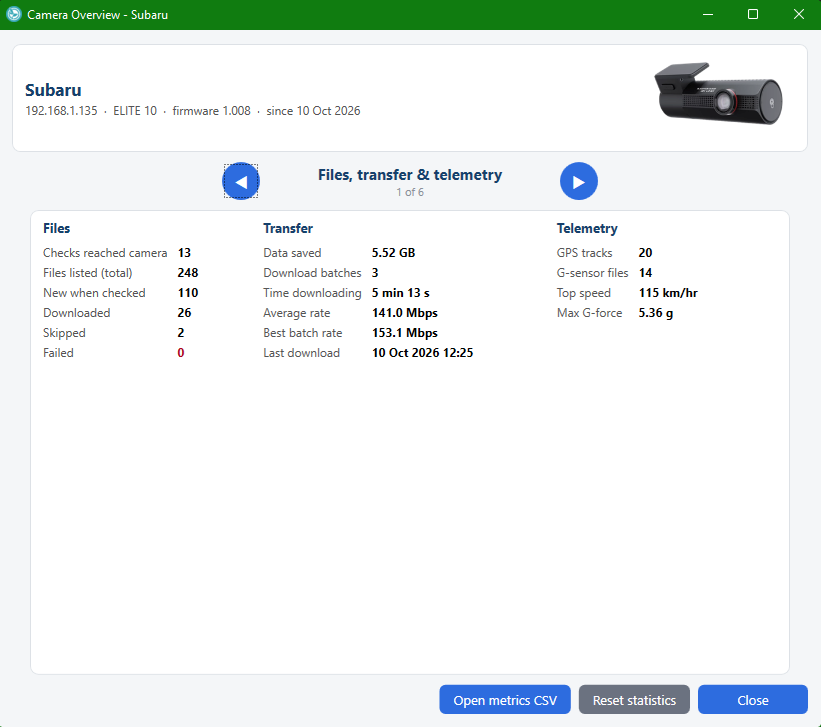
Camera Overview - files and transfer
5.2 · expanded in 5.3

Camera Overview

Everything about each camera: files checked, downloaded and failed (with the reason), data saved, download speed, GPS and G-sensor data, recording types.

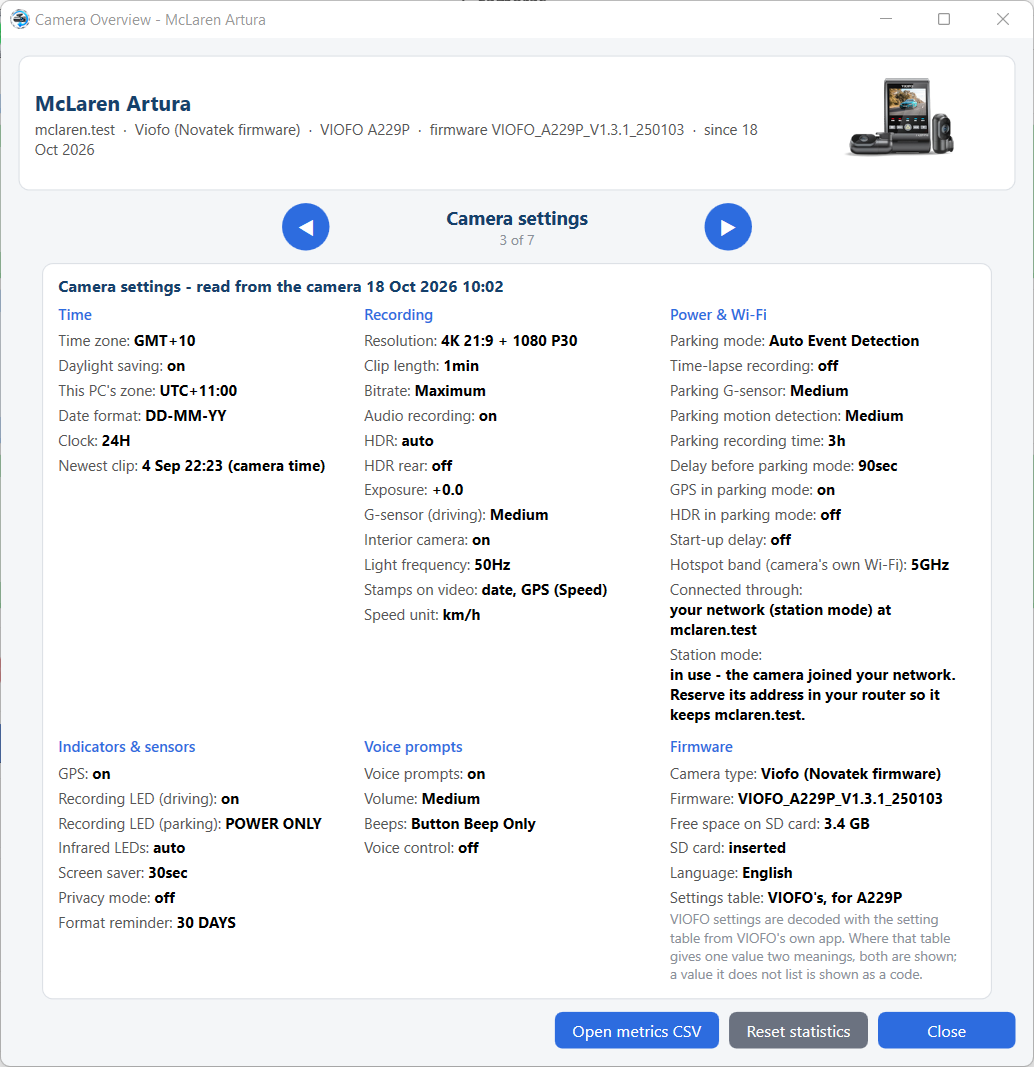
Camera Overview - camera settings
5.3

Camera settings & time zone

Read straight from the camera: time zone and whether its clock agrees with your PC, recording and parking options, low-voltage cut-off, Wi-Fi, LEDs, voice prompts, firmware, serial number and MAC address.

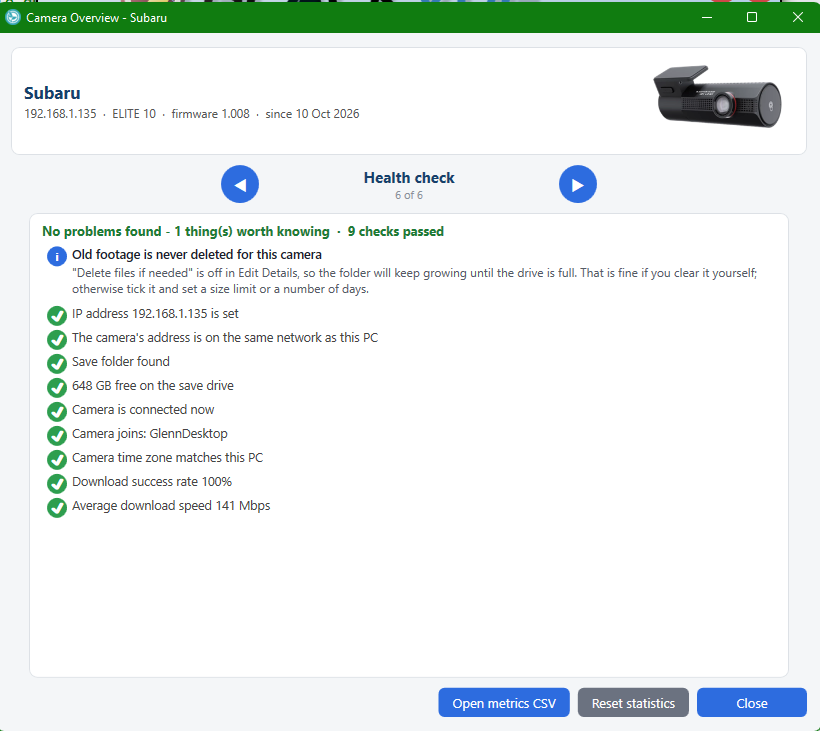
Camera Overview - Health check
5.3

Health check

Spots set-up problems and tells you what to do: wrong IP or network, time zone never set, drive nearly full, rear camera unplugged, a failing SD card. Plus recovery of forgotten camera Wi-Fi passwords.

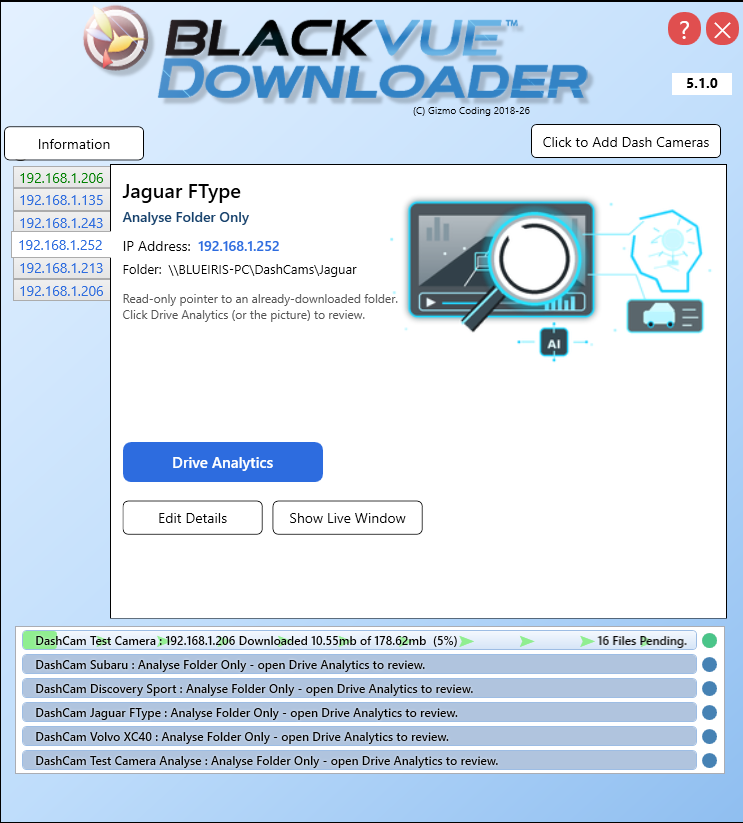
Analyse Folder Only camera
5.1

Analyse Folder Only

Review footage from a shared or NAS folder – Drive Analytics and playback – without the camera, and without downloading or deleting anything.

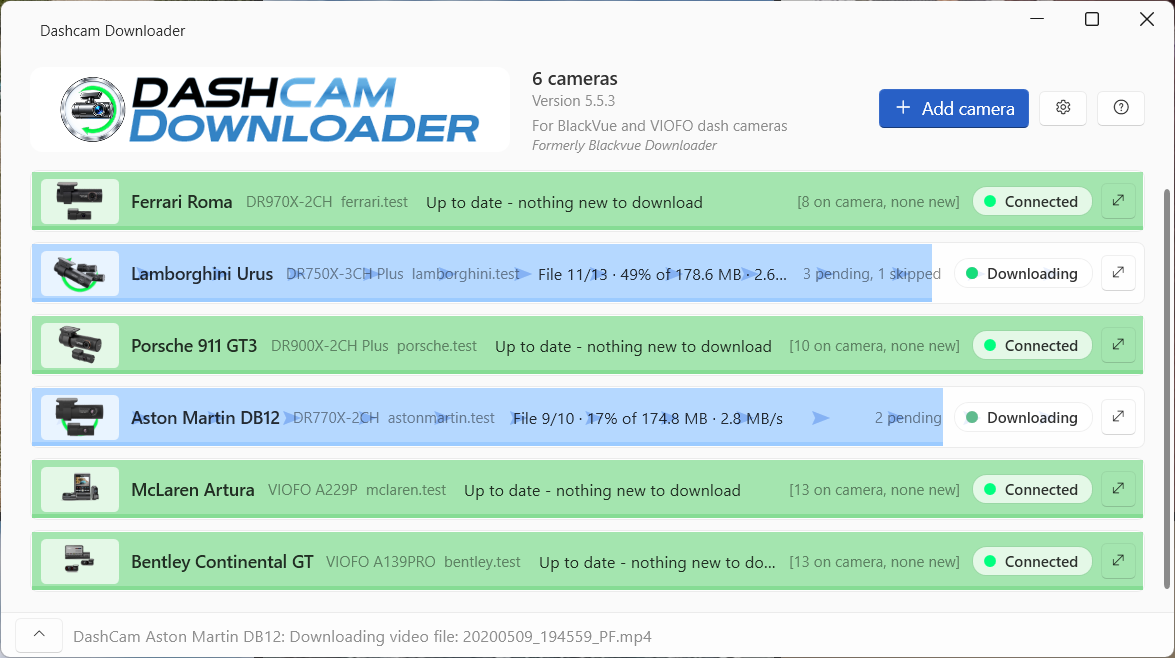
Cameras on one line each
5.1 – 5.5

Status at a glance

Every bar colour means one thing – see the Progress Bar Guide. Cameras that are away drop to a single line and open again when they come home. With several cameras on one router, “one download at a time” makes them finish sooner.

See everything new in each version →

Install, Setup and Leave

BlackVue Downloader downloads your dashcam videos – BlackVue and VIOFO – to your PC over your own Wi-Fi, and lets you analyse and play them.
It runs quietly in the Windows taskbar.
It keeps checking for your cameras on your home Wi-Fi, and whenever one comes home its new videos download in the background. 

Highlights
- BlackVue and VIOFO cameras, side by side
- Multiple dashcams simultaneous download through multi-threading
- 32bit/64bit versions available 
- Low memory/processor usage 
- Dashcam options selectable via each Camera from time for re-checks, save file location, folder GB space to use 

- Allows download of certain files to have priority downloading order (Events or Manual triggered for example)
- Option to 'Never Delete' certain file types eg. Manual - these files will not be used in the space calculation 
- Downloads file in reverse date order/most recent files first 

- Allows Live Video window for each camera if currently connected to be displayed.
- Light or dark, following Windows – or the Classic layout if you prefer
-Windows Store Trial Version available, fully functional for 7 days with some ugly Trial text

Everything that is going on, at a glance – light or dark.
See  & control each camera.

Show Live Video Window for each Connected Dashcam

Features
- Support multiple Dashcams Downloading !
- Cameras that are away drop to a single line, and open again when they come home

Track window - speed graph and street map

GPS Features
- Fastest speed for each dashcam, with a link to its clip
(miles/hr or kms/hr)
- Track Data: every day's drives on a street map, with the speed graph – in the app
- GPS tracks also saved as small Google Earth files (.kmz) for long-term storage
Give easy quick overview of path vehicle taken.

GPS Features Tracking - What does this Mean??

As you would be aware you Dashcam creates a GPS log of where it has been, and what speed travelling at any particular time.

Blackvue Downloader uses this data to create a day-by-day GPS track file (.kmz) of where the camera has been and what speed it was travelling at every point along the way.  
This file is saved next to the video files in a folder called Tracking.
Open it in the app: Drive Analytics → Track Data shows the day's speed graph and the route on a street map, linked together – click either to play the clip from that second. The same files also open in Google Earth Pro (a free install).

The uses are endless:

Parent with a Learner Driver: Worried about speed when you are not in the car?
   - Once in a while you can check - and that data is all there to be seen speed/when/where..

Business worried about Drivers breaking speeding limits?
    - Again once in a while you can check - and that data is there saved for all to see


Email Contact Form

Any Questions, or suggestions please feel free to complete.
We will try to get back to you ASAP!  
Or could check out the Forum link above

SHARE THIS PAGE!


email:
me at gizmocoding.com


VIOFO support’s reply, 11 Oct 2026 (T330 page Q&A)
VIOFO support: Yes, this new line of cameras supports Wi-Fi station mode; a special firmware can keep Wi-Fi always on so parking mode and station mode work together.

VIOFO’s answer, not yet confirmed by a user of these cameras with BlackVue Downloader. Please use the 7-day trial to check your own camera.