No longer just a downloader. BlackVue Downloader now downloads, analyses and plays your dashcam footage – all in one app.
★ Coming Soon
Even more ways to get to your footage. Review clips from a folder that was downloaded elsewhere, scan huge histories in seconds, and keep running around the clock.
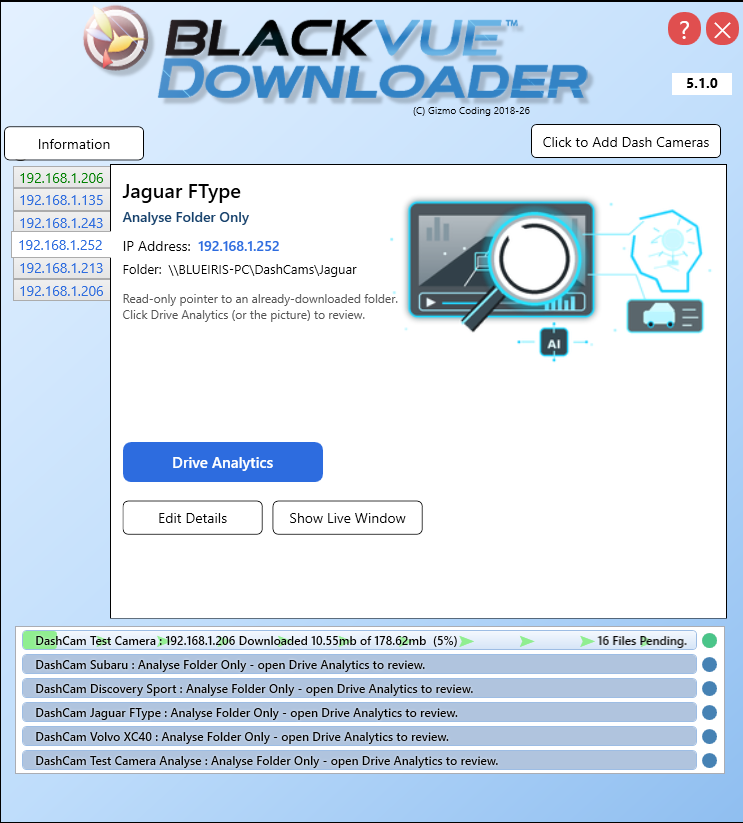
Review footage without a live camera. Point a camera entry at an already-downloaded folder – e.g. a shared / NAS drive filled by BlackVue Downloader on another PC – and review it (Drive Analytics, clip playback and Live View) with no downloading, checking or deletion of that folder.
- Tick Analyse Folder Only when adding a camera; only Name + Folder are needed (IP optional). Point at the folder or its "Record" subfolder – either works
- A clean, dedicated Camera Details tab: the camera picture, a Drive Analytics button, plus Edit / Live / Delete
- Captures the camera's model & firmware whenever it happens to be reachable, and remembers it – so the right model picture and Live View stream work even when the camera is later offline. It only needs to be on the network once.
Faster, tidier analysis.
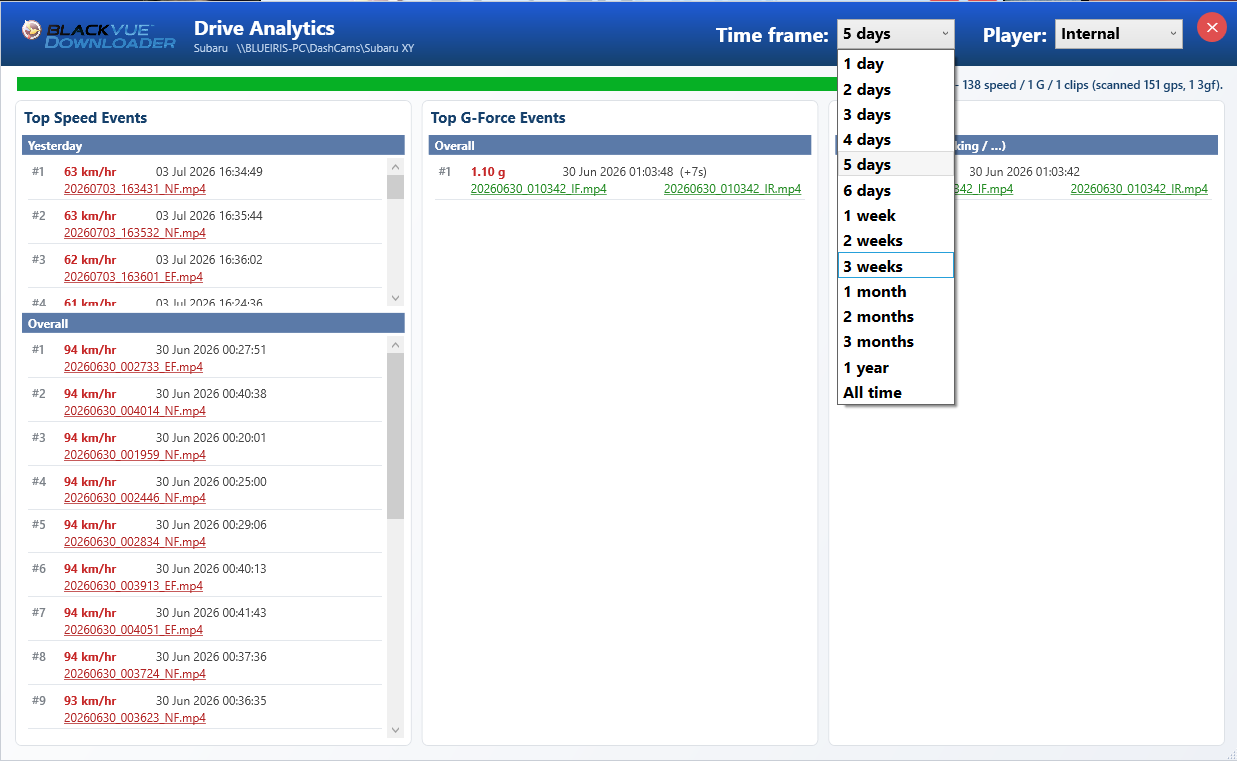
- New Time frame selector (1 day up to 1 year, or All time – default 5 days) – dramatically faster on cameras with tens of thousands of GPS / G-sensor files
- Empty Today / Yesterday (and Emergency / Manual) sections now collapse, so the main Overall / Other list uses the space
Smoother to use, and built to run continuously.
- Click a camera's progress bar to jump straight to its Camera Details tab
- Edits to a camera now take effect immediately – no app restart needed
- Clips with a wrong ‘future’ date (a bad camera clock / time zone) are still downloaded, and flagged in the log, instead of being silently skipped
- Fixed a rare crash that could close the app after running a long time (a Windows pen/touch input bug) – important for an app designed to run around the clock
★ Latest Release
BlackVue's newest cameras (ELITE 9 / ELITE 10 and up) moved to a brand-new RESTful camera firmware (1.009+) that changed how footage is listed and downloaded. Version 5.0.0.0 adds full support:
- Local Wi-Fi download from the new RESTful cameras
- Reads the camera's new settings / configuration format
- All while keeping full support for every older camera and firmware
Live View now works on the new firmware too – and rear-camera handling is fixed.
- New cameras stream live over their built-in RTSP video server
- Single-lens cameras (no rear) are now handled correctly – no more empty rear window
- Older cameras continue to use the existing MJPEG live view
- Front / rear channel selectable as before
GPS keeps working on the new firmware, which stores it differently – and the g-sensor now does much more.
- GPS & G-sensor data extracted directly from the recorded MP4 files
- New G-force reporting: your peak G is recorded for every drive, with the exact moment it happened
- Day-by-day Google Earth tracks generated as before (speed / route / time)
- Max Speed now links straight to the clip where it was reached
- Track times now corrected to your local time zone
More camera pictures and model support.
- Added images for the newer models (DR970X, DR770X and the ELITE range)
- The camera picture now appears even while the camera is offline
- Full artwork for the very latest models is still being completed
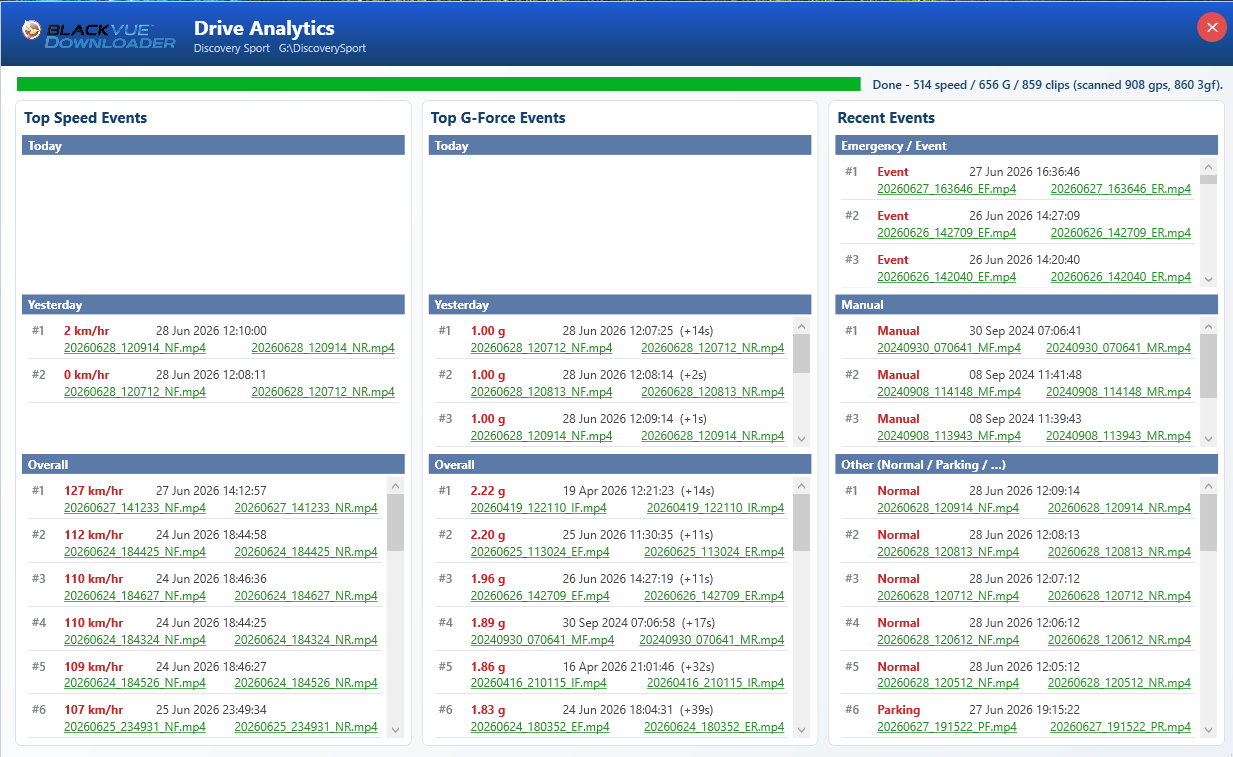
Get straight to the footage that matters. Open Drive Analytics for any camera – just click its picture, or right-click → Open Analytics – and instantly see your most important moments, each a direct one-click link to the exact clip.
Your fastest moments and hardest knocks, at a glance.
- Top Speed events ranked highest-first (km/h or mph to suit your region)
- Top G-Force events read from the camera's g-sensor, pinpointing the exact moment in the clip
- Split into Today, Yesterday and Overall
- Every entry links straight to the video
Every event type, neatly organised.
- Emergency / Event and Manual recordings in their own lists
- All other driver events – Impact, Overspeed, Hard Braking / Acceleration / Cornering, Geofence, Drowsy, Distracted and more – sorted by importance
- Routine Normal & Parking clips kept out of the way
- Most recent at the top
No more digging through folders for the clip you need.
- Click any entry to open that exact clip
- Matching rear footage shown alongside the front, when available
- Links are colour-coded so you can see which clips are already on your PC
- Built fresh each time you open it – ready in seconds
Click an event and the video opens already at the exact second it happened. Top-speed and G-force moments – and every event clip – now seek straight to the instant, instead of starting from the top of the minute.
No more scrubbing to find what happened.
- Opens at the precise moment of the event – the peak speed, or the impact
- Works for both the front clip and the matching rear footage
- The exact instant comes from the GPS log and the camera's g-sensor
Play clips however you like – and your choice is remembered between sessions.
- External: opens in your installed VLC, MPC-HC or mpv, jumped to the moment
- Internal: the new built-in viewer
- System: the Windows default player
- Pick it from the selector in the Drive Analytics title bar
A simple, no-install player built right in.
- Full seek bar with play / pause and keyboard shortcuts
- Opens at the clip's true size, centred over Drive Analytics
- Jumps straight to the event the moment it opens
- Uses the same video engine as Live View – nothing extra to install
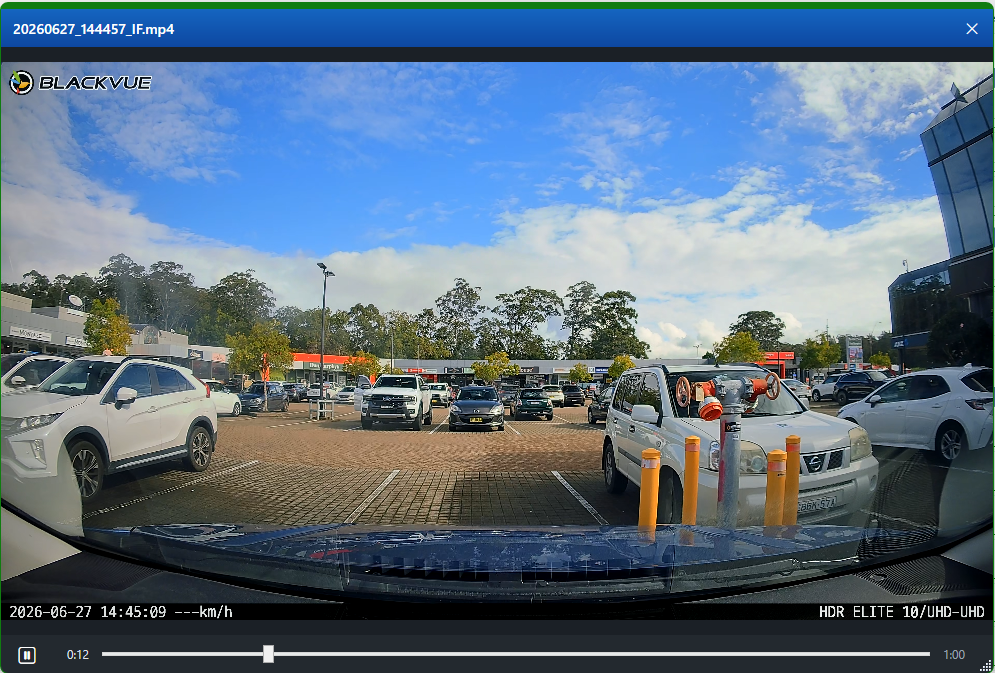
New: “Ignore Hours” – skip footage recorded between set hours, per camera.
- Choose a start and end hour (e.g. ignore everything between 10 PM and 6 AM)
- Perfect for skipping routine overnight parking footage
- Optional “always keep Event, Impact & Manual” so a real incident is never missed
Cancel Download and clearer progress.
- Right-click a camera → Cancel Download to stop its queue
- Animated download progress with a flowing indicator
- A status dot shows completion at a glance
- “Ignore” download priority to skip a whole file type
More at-a-glance camera information.
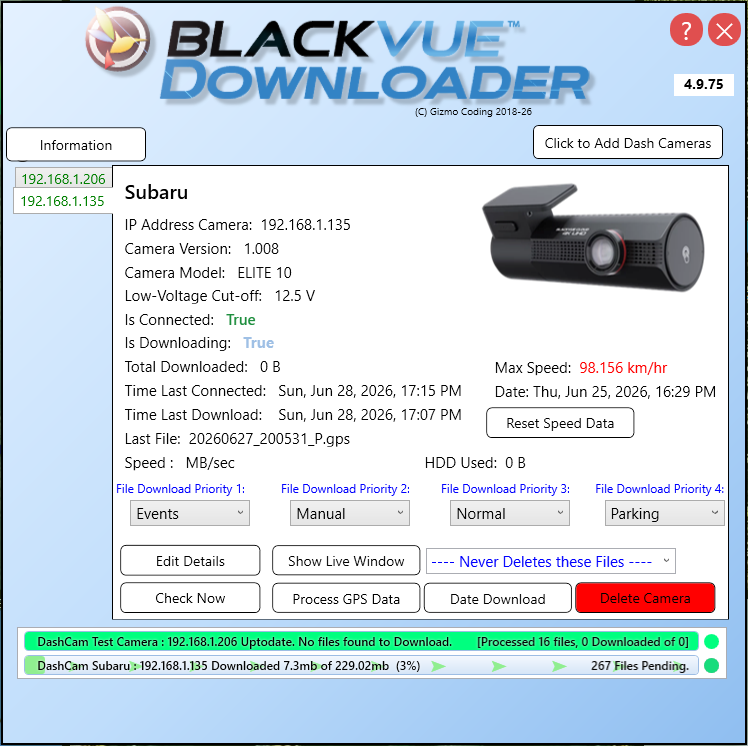
- New “Low-Voltage Cut-off” reading (your camera's battery-protection voltage)
- A green “Connected” status and an animated “Downloading” indicator on the camera details
- Refreshed, consistent styling across the whole app
- Single-instance: launching again reopens the existing window instead of erroring
- Minimises to the system tray with a notification when closed
- Startup crash fix, plus numerous reliability and Microsoft Store packaging fixes
Coming soon to the Microsoft Store.
Hard to summarise this feature in a title!
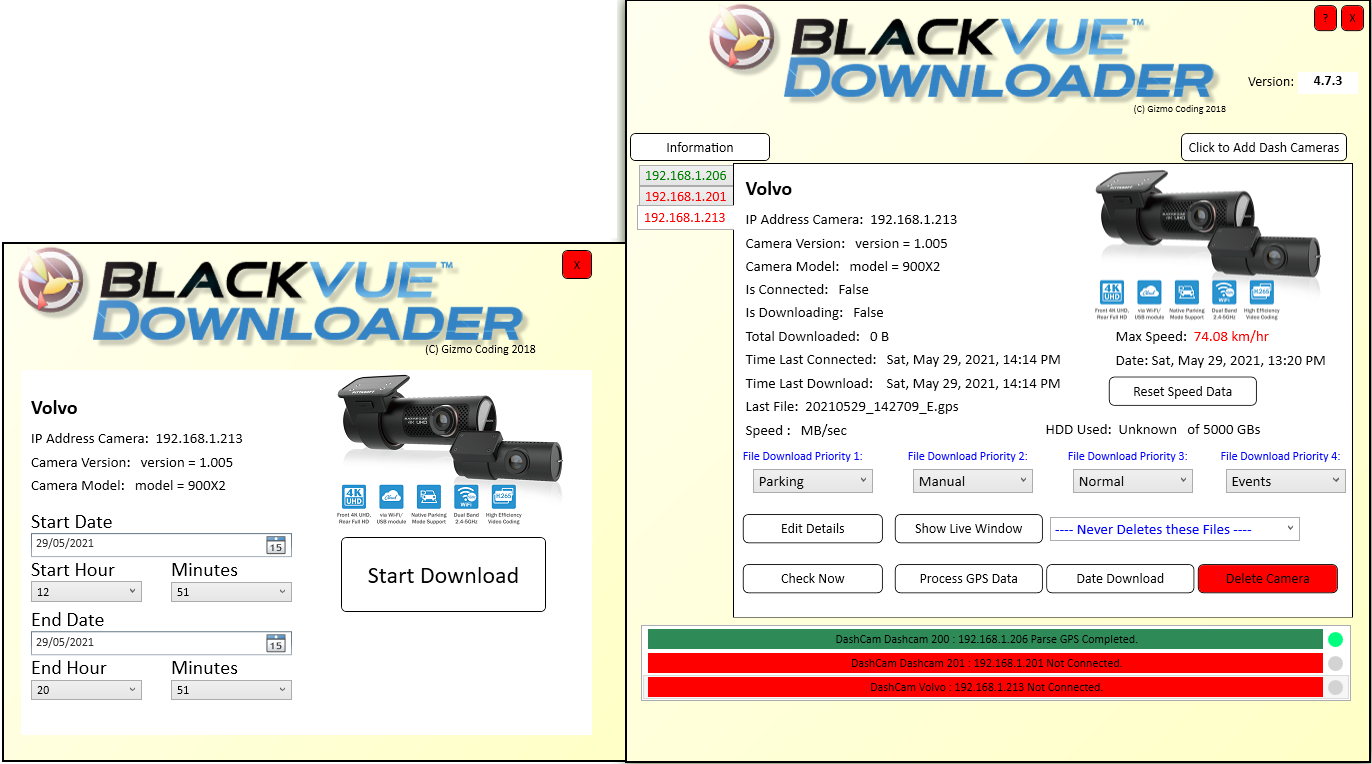
Bug version 4.7.0 onwards allows immediate download of a certain Date and Time window.
eg. Accident or incident at 5pm after a day of driving
When home select camera and press the new Date Window, select the time interval and 'Start Download'
When Camera next connected or immediately if currently connected will start downloading all files from this window.
Once finished - will return to usual checking/file downloading.
See Below:
Add Bug fix for IF and IR files in Parking mode if using Time Lapse recording
Add 6 hours buffer to current time, in case Camera DateTime out of sync, daylight savings etc.
Add Full support for new Models of Blackvue Cameras
DR900X-1ch and DR900X-2ch
DR750X-1ch and DR750X-2ch
Bonus appears to be faster wifi throughput; up to 17 mb/sec on my testing (double earlier models it would seem)
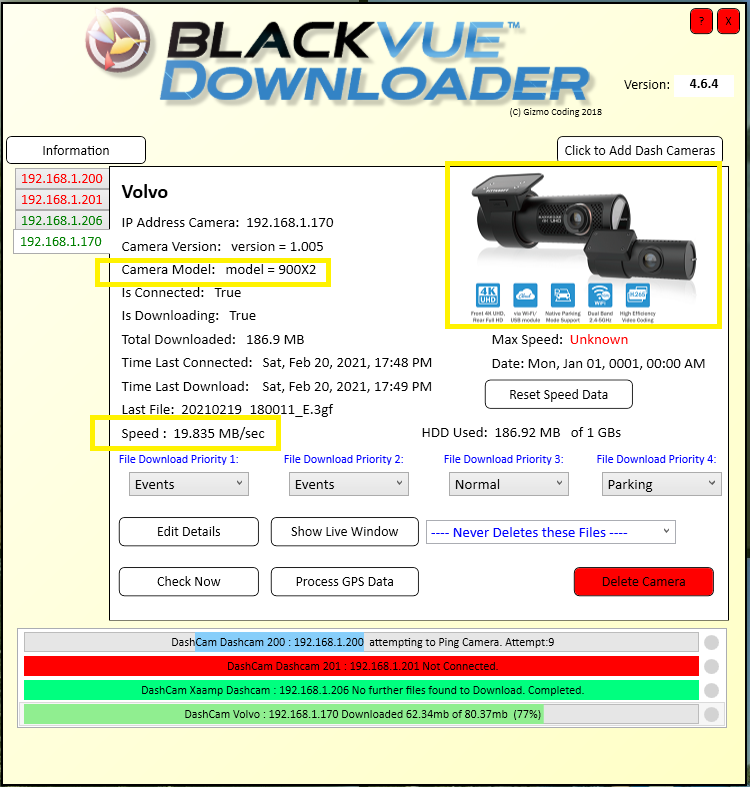
New Support for latest range of Blackvue Cameras X-Models
Faster download speeds with new Cameras
Update Settings File location, hopefully to better future proof againsts Windows 10 changes
BVD should load old file, re-jig and re-save in new location without user input
Add to the About screen Backup/Restore Settings options
Saved as BVDbackup file, can rename and save multiple copies as needed.
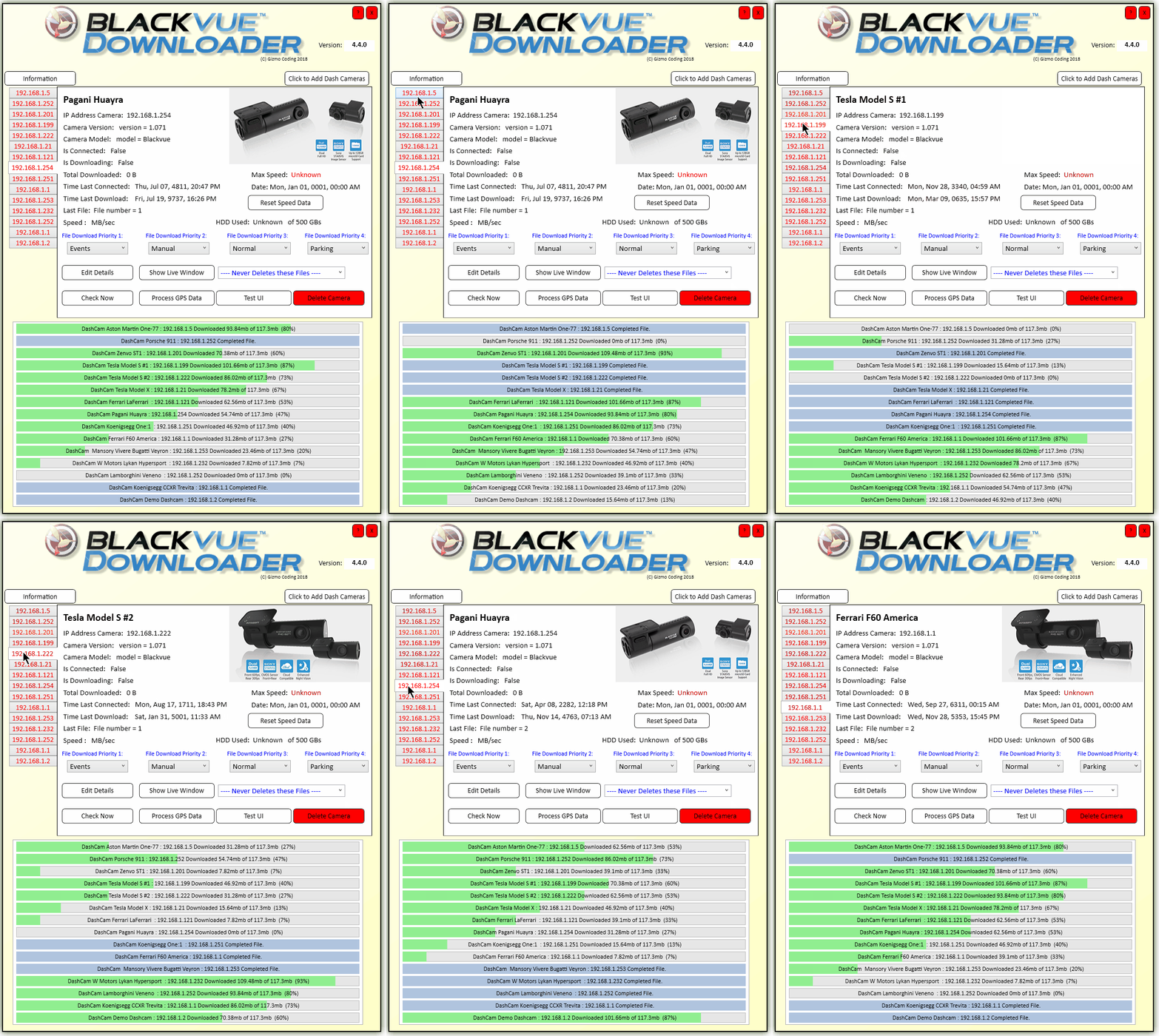
Add Green Dot to right of progress Bar
This dot is either Grey or Green - if it is Green it indicates that the Dashcam has successfully completed downloading files within the last 24 hours
Minimise long term memory usage, tidy up as much memory usage as possible
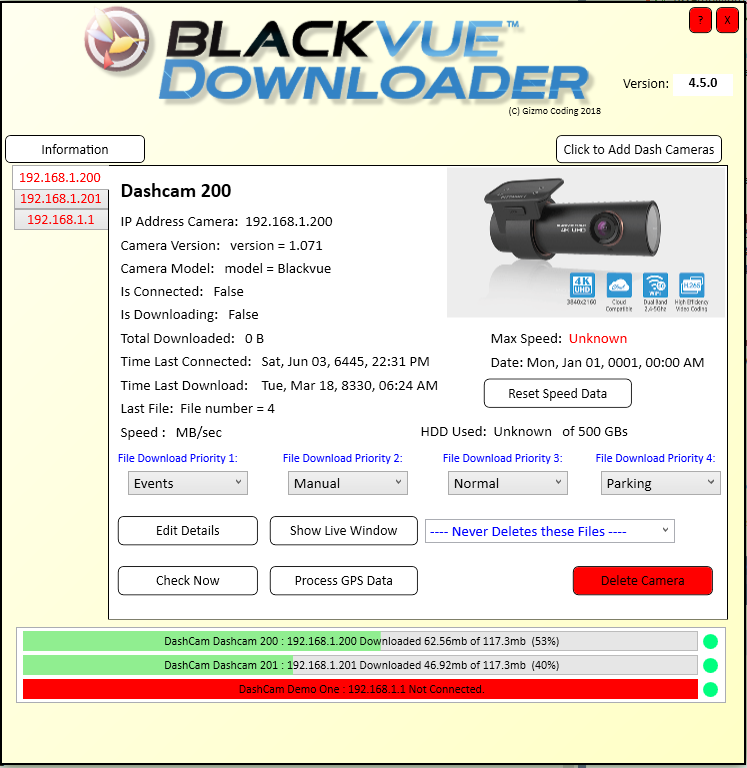
4.5.0 Main Page - Note the Green Dot, these Cameras have successfully completed downloading within past 24 hours.
Two are actively downloading now, 3rd unconnected currently.
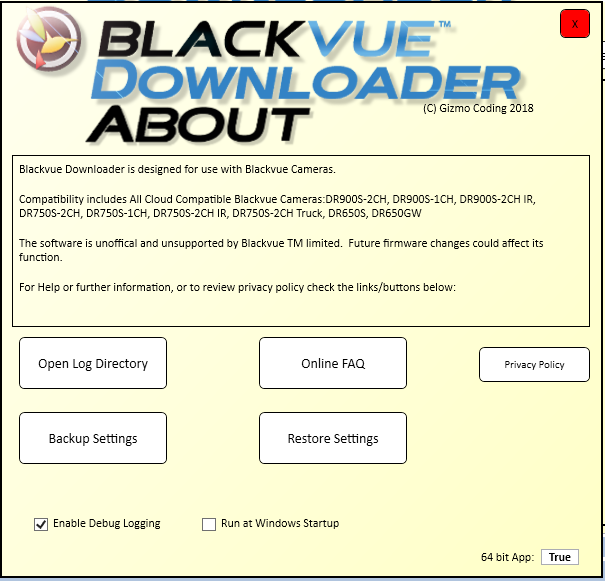
About Screen - Press ? in Main Screen,Top Left
Backup/Restore Settings Options
Changes to log handling given apparent windows changes
Add Exception.log as separate log file in case more significant errors.
BVD can't stop your drive from filling up! It can certainly not use anymore space that you set, but for various reasons that may not be enough.
If this happens - will better report what is going on
Have had one report of SD Card read error (Error 500) Appears to be bad file data on SD card that cannot be read.
Prior versions which take this error to mean that the car/dashcam is now gone, this updates skips this particularly file.
If you get this error it may go away of its own accord, however formatting SD card has worked in the reported case
Open directory of Log files in About Window
Update dependencies
Save Settings file every 12 hours, in case some major computer crash/update
Better handling of 'unhandled exceptions'
Some code changes to avoid the above
Add About Screen for Info and Hiding Boxes/Settings
To Access Press Top Left ? Box.
Remove Startup Error if haven't selected run with WIndows
Spelling fix for successful! Oops
Change handling of 404 File Not Found Errors, would occur quite commonly it appears the SD Cards over-writes files and then those files are not present to download. Hence the 404 File Not Found Errors
4.3.7 Update changes handling of this error to a minor, skip file error, but don't make whole Dashcam as unavailable.
Logging changes, avoid unneccesary entries
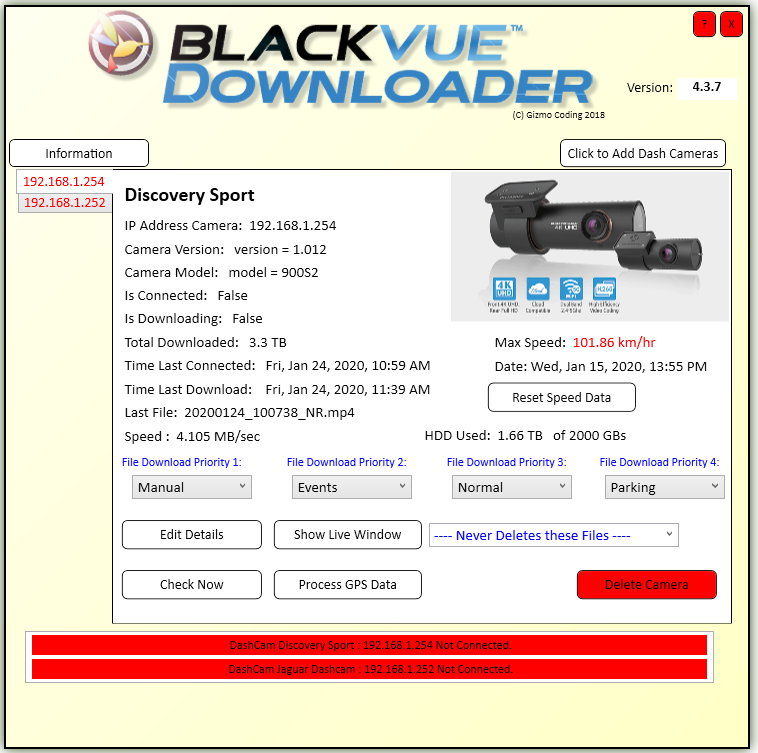
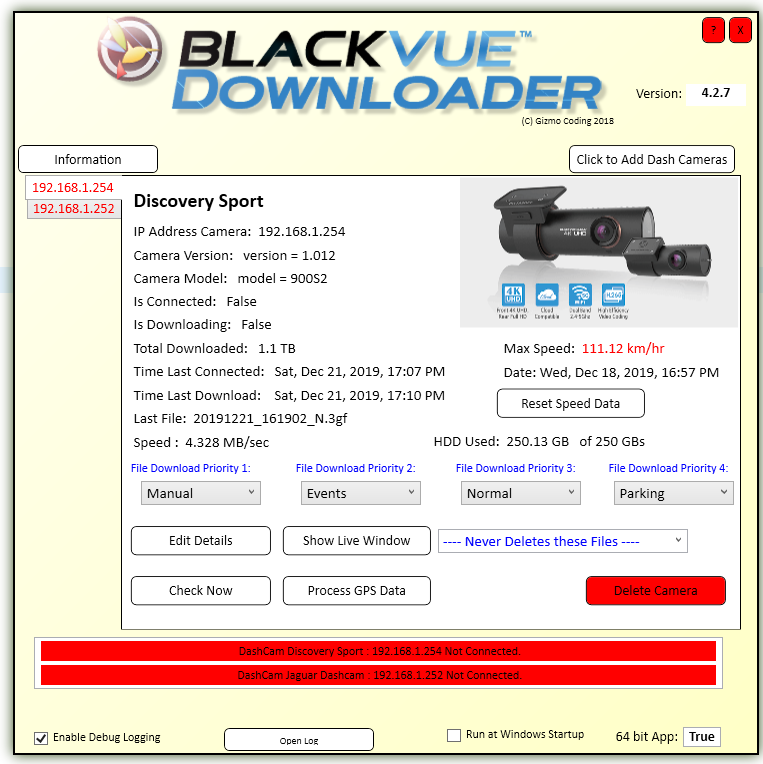
4.3.7 Main Page
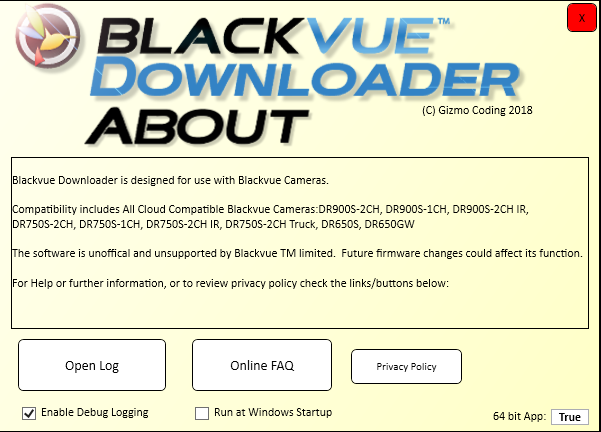
About Screen - Press ? in Main Screen,Top Left
Some Cosmetic changes to look better!
Fixes for better compatibility with Google Earth for the KMZ Files
Better Compatibile with Profile data - correctly showing speed graphs all going well
Skip duplicate timestamps helping with compatibility, use all timestamps regardless - helping with compatibility
Skip 0 byte GPS files (Parking ones)
Parse ALL GPS files, missing from other solutions out there
Compatible with DPI, Scaling on all sized Windows 10 Monitors
Allow resizing of Live Video Window
Download all GPS files first, on first connection, Parse, generate Track Data - then start with Video Files.
Allows Track files to be reviewed, looked at soon after camera connection.
Keep all GPS data for 21 days (minimum file sizes)
If only was a Blackvue Camera option for the same....
Hopefully robust fix for Windows 10 Startup Options...
Adds GPS Track Data as shown in this youtube example Below:
Manual can process all GPS data by pressing button, or automatically creates file once finished downloading.
Otherwise GPS data is processed at the end of downloading completed for all days, including the current date/day. This data may obviously be added to as more journeys and data are added.
Track file is tiny/small, but contains tracking info, including speed and Date/Time at any time along the path.
As you can see within Google Earth (free) can easily review tracking, path data, including checking data/time and speed at any point along the path by clicking. By Right clickng on Track file - can show 'Elevation Profile' this shows graph at bottom of elevation data & more usefully speed data.
Newly created KMZ files are saved in the Same location as your Videos. A separate directory called 'Tracking' is Created.
These files are kept until you manually delete them - generally speaking they are a few hundred KBs only.
Blackvue Downloader will automatically create these files once downloading is finished.
Very small data size - but gives very useful long term tracking data.
Helps with fleet/driver management, and review. Long term data saved for distant review, even months later...
Very easily review paths vehicles have taken, check for strange destinations and review max/min speed and acceleration/declaration very easily.

SHARE THIS PAGE!